- Large Image File Sizes (KB or MB)
Heavy images (such as 2 MB or larger) will weigh down your site. Site visitors might exit before the page completes loading.
- Large File Sizes (Pixels)
Occasionally, pictures are larger than required. An example would be using a 4000px wide picture when 800px is sufficient and slowing the site down.
- Poorly Written or Missing Alt Text
Alt text is a way search engines like Google can understand the detail of the image. If it is missing or is not well written, e.g. "image1," Google won't be able to tell what it is.
Outdated formats like JPEG and PNG are okay, but not great. Google recommends WebP and SVG for smaller file sizes and faster loading.
- Non-Descriptive File Names
Giving random names to the files is not going to help SEO at all. For example, "IMG1234.jpg" cannot be indexed by any search engine. The best practice is to use keywords, such as "blue-running-shoes.jpg."
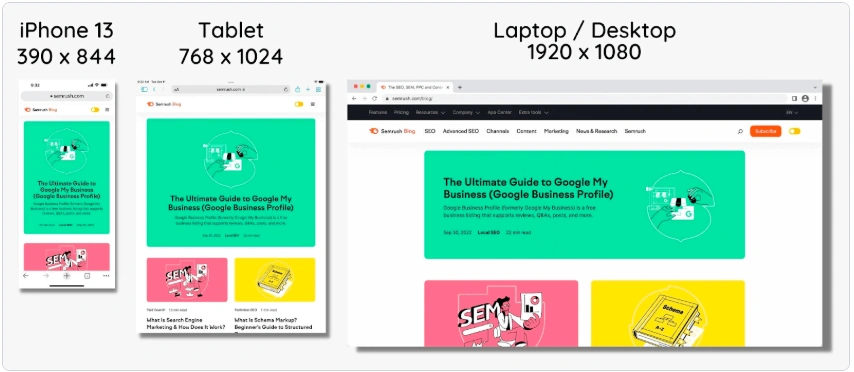
Images need to look good on mobile, tablets, and desktops. Without proper sizing, they will look odd or will take forever to load on smaller devices.
How to Optimise Images for SEO
Image SEO is about making your images load quickly and making Google comprehend them easily. It assists in speeding up your website and making it rank better. These are easy steps to do it correctly.
Select the Correct Format
Utilizing the appropriate image format loads your site faster without compromising quality. Certain formats are more suitable for photos, others for logos and graphics. WebP is most suitable for the majority of applications since it provides great compression and renders images crisp on all devices.
It gives good quality with a smaller file size. Great for pictures with many colors.
- PNG – Best for images with transparency
It keeps the image clear but is heavier than JPEG.
- WebP – Best choice overall
It’s a modern format. It loads faster, uses less space, and still looks good.
- SVG – Best for logos and icons
SVG files don’t lose quality when resized. They’re great for design elements.
- BMP and GIF – Not recommended
These are old formats and often heavier. Use only if needed.
Tip: If you’re unsure, go with WebP. It’s Google’s favorite.
Resize Images to Proper Dimensions
Using images with proper size makes your website load faster and keeps it looking good on all devices. Don't upload large images when smaller ones are sufficient.
- Avoid Full-Resolution Images
If the image is going to be displayed at 400x400, then it is unnecessary to upload an image with 4000x4000 pixels. Reducing the size of the image before uploading is recommended.
- Set Different Sizes for Mobile and Desktop
Implement responsive pictures which fit to the screen size you have. This not only makes your site perform better on all devices but also minimizes the loading period.
Use Descriptive File Names, Titles, and Alt Text
The names and alt text that are clear may make it easier for Google to recognize the image content. In place of “IMG1234.jpg,” go for names such as “puppy.jpg” and provide a brief, keyword-rich alt text like “puppy”.


Avoid Default Camera Names
Never use names like “IMG_0123.jpg.” They don’t help Google or your readers.
Use Keywords in Filenames
Give filenames such as “red-sports-shoes.jpg” or “seo-guide-banner.webp” to create a better image context for Google.
Add Clear Alt Text
Alt text is a description for the image. It is for screen reader users and also tells Google the contents of the image.
Example: For an image of a chocolate cake, do not use "image1," but instead use "Chocolate cake with dark chocolate topping."
Use Unique and Original Images
Stock photos are okay; however, original images are better for SEO. Use your own photographs or graphics when you can.
Use Lazy Loading
Lazy loading means images get loaded only when someone scrolls to them. This makes the page load faster and hence improves user experience. Ask your developer to go ahead with this during the website development.
You don’t need to be a tech expert to reduce image sizes. There are easy tools that can help:
Online Free Tools (No Installation Needed)
- TinyPNG – Compresses PNG and JPEG files well
- ILoveIMG – Easy and simple interface
- CompressJPEG / CompressPNG – Free and works fast
- Optimizilla – Compress multiple images at once
- Squoosh (by Google) – Offers many compression options
These tools are great if you want to quickly reduce file size without hurting image quality.
Desktop Software (For Windows/Mac – Paid)
- ImageOptim – Best for Mac users
- Adobe Photoshop – Advanced tool for editing and compressing
- FileOptimizer – For those who need detailed control
To know what’s slowing down your site, use these tools:
Google PageSpeed Insights
This tells you if your images are too large or need resizing.
Google Search Console
Helps find images that are missing alt text or have indexing problems.
Screaming Frog SEO Spider
Scans your site and shows image errors, sizes, and missing alt text.
GTmetrix
Gives you a detailed report on speed and image problems.
Sitebulb
Shows in-depth SEO issues, including with images.
Ahrefs Site Audit
Finds broken images and gives SEO tips.
WebPageTest
Tests how fast your page loads and where the issues are.
Cloudinary Website Image Analysis
Special tool that gives deep analysis of how your images are performing.